
If your business or brand has two Facebook Pages for the same thing, you should merge them so that there’s one official Page. This helps to avoid confusion among your fans, brings all of your fans together into one central place and makes it easier for you to manage.
On Facebook, you can only merge Pages that you own and control. You can also merge a Facebook Profile into a Page by first migrating the Profile into it’s own Page and then merging the two Pages. If there’s an extra Page for your brand that you don’t own, you can report it as a duplicate Page.
How to Merge Facebook Pages
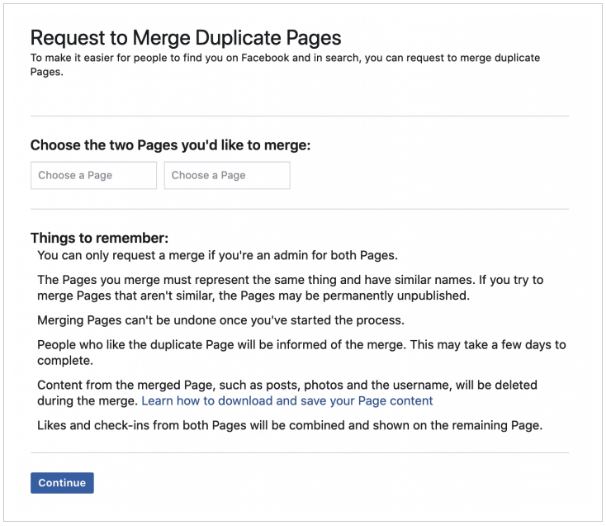
If you have two Facebook Pages set up for the same thing, you’ll want to merge the Pages.
To merge Pages, they need to have a similar name. If you’re merging Pages with a location, they also need to have the same address listed on the About Page.
Merging Pages combines all of your likes and check-ins but the content from the Page you are merging (photos, timeline posts, reviews, etc.) will be deleted.
Note: Once Pages are merged, you can’t unmerge them.
My recommendation is to keep the Page with the best username, even if the other Page has more likes. But…you’ll want to use your best judgement based on whether you think the old posts, photos, reviews and ratings are more important to preserve. Remember, people who like your page will be merged into the new page and then sent a notification, hence my suggestion to go with the best username.
To merge 2 Facebook Pages:
- Go to facebook.com/pages/merge.
- Select the 2 Pages you want to merge and click Continue.
- Click Request Merge.
According to Facebook Help, if you’re unable to merge your Pages, it means that your Pages aren’t eligible to be merged. If you see the option to request to merge your Pages, Facebook review your request.
Note: If your Pages are on Business Manager, you can go to business.facebook.com/pages/merge to merge them.
- Go to the Page with the most likes. (Alternatively, if the Page you’d rather keep has fewer likes, you can try going to that Page and see if you can merge the other Page into this one).
- Go to Edit Page > Update Info.
- Under Resources, if you have 2 Pages with similar names, there will be a Merge Duplicate Pages link. Click on it, and in the popup window you’ll see a list of Pages that you administer that can be merged. Select the Page you want to merge. Click Merge Page.
- Post a note to fans telling them that the Pages have merged and work to build up engagement levels. Note: It may take a couple of days for your fan count to be accurate.
How to Merge a Facebook Profile into a Page
If you originally set up a Facebook Profile for your brand before you realized that Pages are better for business and then set up a Page as well, there’s a way to merge a Facebook Profile into a Page.
First, you need to follow the migrate instructions, which will convert your Profile to a Page, leaving you with both. You then select the photos and videos you want moved to the new Page and later change the picture, cover photo and name to your business identity.
Start the process of converting a Facebook Profile into a Page here.
BUT before you convert your Profile to a Page:
- Since content from your timeline won’t be carried over, download your timeline information.
- If you manage any groups, add a new group admin (just in case).
- Rename your Profile to your desired Page name.
- Migrate your Profile to a Page.
When you convert a Profile to a Business Page, according to Facebook, these things will be carried over:
- Your profile’s followers, friends and friend requests will get notified that you’ve created a new Page.
- The profile followers you choose will automatically follow the new Page and will be removed from following your profile.
- Friends and pending friend requests you select will automatically like and follow the new Page, and won’t be removed from your profile.
- Your profile picture will become your Page’s profile picture.
- Your username will become your Page’s username.
- You’ll remain admin of the Facebook Pages that you manage.
- You will choose which photos and videos to copy over from your profile, but the views and other metrics don’t transfer to the Page.
When you’ve finished setting up your new Page, doublecheck your privacy settings on your profile to make sure you’re sharing what you want to share.
How to Report a Duplicate Facebook Page
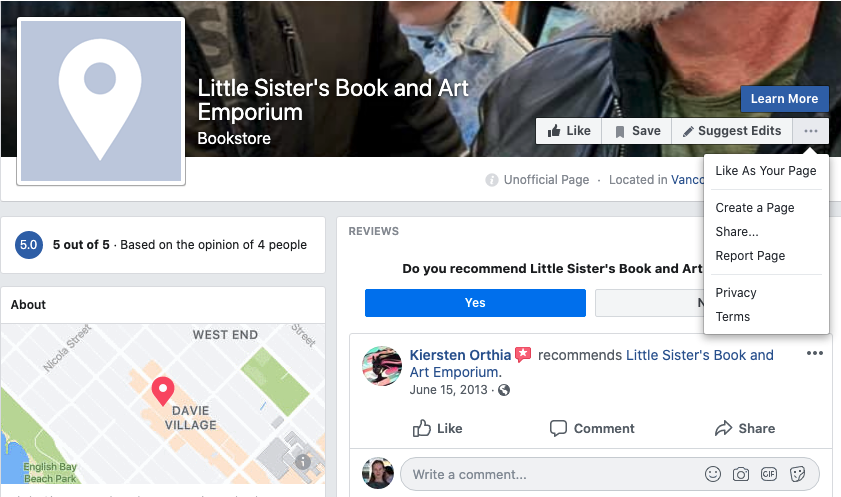
If there are multiple Pages for your brand that you don’t own (a wiki-type Community Page, for example) you can report it as a duplicate Page. People have had various success with this, but it doesn’t hurt to try.
To report a Facebook Page:
- Visit the Page you want to report and click on the … icon in the top right corner.
- Select Report Page > Duplicate or miscategorized page.
- Select Duplicate of Another Page and enter the link to the official brand Page.
Looking For More Facebook Marketing Help?
See our 1 Minute Marketing Tips on Facebook: